Ever wondered how to capture your awesome Roblox gameplay on your Mac? This comprehensive guide dives deep into the best methods and tools available for recording your Roblox adventures, perfect for sharing with friends or uploading to your favorite video platform. We'll cover everything from built-in macOS features to popular third-party game capture software, ensuring your recordings are smooth, high-quality, and hassle-free. Discover why recording your Roblox sessions can elevate your gaming experience and how simple steps can turn you into a Roblox content creator. Get ready to immortalize those epic wins, hilarious fails, and creative builds with easy-to-follow tips and tricks designed specifically for Mac users. This article will navigate you through optimizing your Mac for recording, troubleshooting common issues, and even editing your footage for that professional touch.
Hey there, fellow Mac user and Roblox enthusiast! Ever scratched your head wondering how to perfectly capture your in-game triumphs or hilarious mishaps? You're not alone! It's super common to want to record those epic Roblox moments, whether it's for sharing with friends, uploading to your channel, or just reliving the fun later. This guide is your ultimate living FAQ, updated for the latest macOS capabilities and Roblox game trends, designed to demystify the entire process. We'll walk you through everything from the simplest clicks to more advanced setups, ensuring you can record your Roblox adventures like a pro. Get ready to turn your gameplay into shareable stories!
Recording your Roblox sessions on a Mac doesn't have to be a tech challenge. We’re going to cover all the burning questions people have, from optimizing your system for smooth recording to finding the best software, both free and paid. Think of this as your friendly chat over coffee, where we break down the complexities into easy-to-understand steps. By the end, you'll have all the tips, tricks, and guides you need to confidently capture your Roblox world. So, let’s dive in and get those amazing moments recorded!
Most Asked Questions about Recording Roblox on Mac
Can I use QuickTime Player to record Roblox on my Mac?
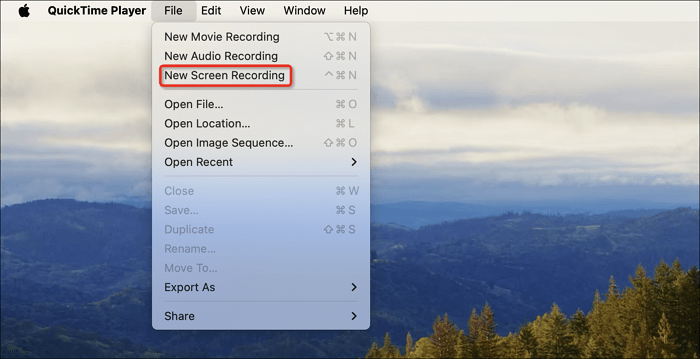
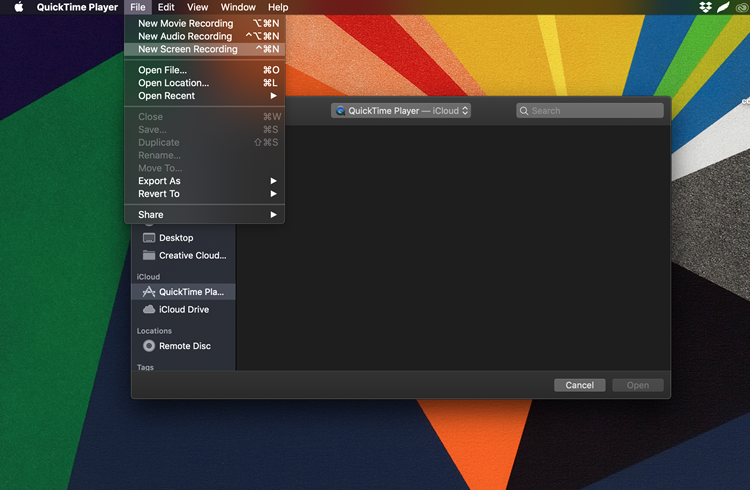
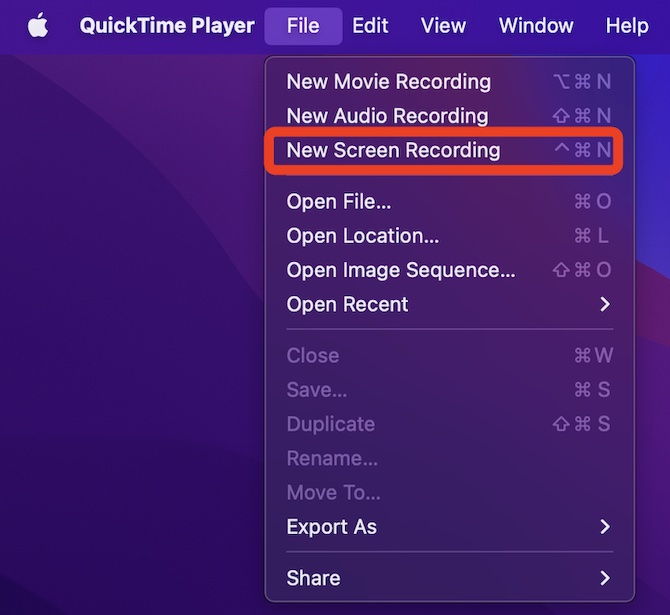
Yes, absolutely! QuickTime Player is a fantastic, free, and built-in tool on your Mac for recording Roblox. It's super simple to use; just open QuickTime, go to 'File' > 'New Screen Recording,' select your desired capture area (the Roblox window works great!), and hit the record button. Remember to adjust audio settings if you want to include your voice. It's perfect for quick captures and doesn't require any extra downloads. You'll be surprised how effective it is!
What are the best free alternatives to QuickTime for Roblox recording on Mac?
For more advanced features beyond QuickTime, OBS Studio is widely considered the best free alternative. It's powerful, open-source, and highly customizable, allowing you to record specific windows, mix audio, and even live stream. While it has a slightly steeper learning curve, its capabilities for high-quality game capture are unmatched. Other options include the macOS Screenshot Toolbar (Shift+Command+5) for quick clips. OBS is definitely worth the setup time if you're serious about content creation.
How can I ensure my Roblox recordings on Mac have clear audio?
Ensuring clear audio involves a few steps. First, within your recording software (QuickTime, OBS), make sure you've selected the correct microphone input. For recording game audio simultaneously, you might need a third-party virtual audio driver like BlackHole or Loopback to route system sound. In OBS, you can add separate audio tracks for your mic and game. Always do a quick test recording to check levels and clarity before a long session. Good audio makes a huge difference in viewer engagement!
Why is my Mac Roblox recording showing low frame rates or lag?
Low frame rates or lag in your Roblox recordings usually stem from your Mac struggling to handle both the game and the recording software simultaneously. To fix this, try closing all unnecessary background applications, lowering Roblox's in-game graphics settings (like shadows or texture quality), and ensuring your Mac is plugged into power (especially if it's a laptop). Having sufficient free storage space and RAM also significantly helps. A small optimization can make a big impact on your video's smoothness.
What are common issues with Roblox recording on Mac and how to fix them?
Common issues include no audio, choppy video, and large file sizes. For no audio, check privacy settings for microphone access and correct input selection in your recorder. Choppy video often means optimizing your Mac (close apps, lower game settings, ensure power). For large files, use recording software that allows compression settings (like OBS) or plan to use video editing software to compress after recording. Most problems are solvable with a bit of troubleshooting and settings adjustments. Don't let a small glitch stop your creativity!
Are there any specific 'tricks' to get higher quality Roblox recordings on Mac?
Yes, for higher quality, consider using a dedicated game capture software like OBS Studio and experimenting with its advanced settings. Increase your bitrate (within reason for your Mac's capabilities), record at a higher resolution (e.g., 1080p), and use a good quality microphone for commentary. Ensure you're recording to a fast drive, preferably an SSD, to minimize bottlenecks. Post-production editing, like color correction and stabilization, can also significantly boost perceived quality. It's all about pushing your setup to its optimal performance.
How do I share my Roblox gameplay videos from my Mac to platforms like YouTube?
Once you've recorded and edited your Roblox video, sharing to YouTube from your Mac is straightforward. Most editing software (iMovie, Final Cut Pro) have direct 'Share to YouTube' options or allow you to export in a YouTube-friendly format (like MP4 at 1080p or 4K). Then, simply log into your YouTube account, click the 'Create' (camera icon) button, select 'Upload video,' and drag your file. Add an engaging title, description, and tags to help people find your awesome content. You're ready for your debut!
Still have questions?
If you're still scratching your head after all this, don't sweat it! The world of gaming and content creation is always evolving, and new questions pop up all the time. Feel free to dive into our other related guides like 'Advanced OBS Settings for Mac Gaming' or 'Top 5 Mac Video Editors for Gamers' to further hone your skills. Keep practicing, keep experimenting, and most importantly, keep having fun on Roblox!
Hey there, fellow Robloxian! Ever hit an absolutely legendary moment in your favorite Roblox game and thought, "Man, I wish I had recorded that!" It's a common gamer dilemma, especially for those of us navigating the vibrant worlds of Roblox on a Mac. We get it; you want to share those epic builds, hilarious interactions, or mind-blowing parkour runs with your friends or your growing YouTube audience. But how exactly do you record on Roblox using your Mac without a ton of hassle?
Well, you're in the perfect spot! We're diving deep into the world of Mac recording for Roblox, ensuring you can capture every single thrilling second. Think of this as your ultimate guide to becoming a Roblox content creation wizard, all from the comfort of your macOS device. We’ll explore why recording your gameplay is so much fun and how easy it can be to start today. Get ready to transform your gaming into shareable memories.
Why Record Your Roblox Adventures on Mac?
Why bother recording your Roblox gameplay anyway? The reasons are as varied as the games themselves! Many players love creating content for platforms like YouTube or TikTok. Sharing your unique perspective, hilarious commentary, or skilled gameplay can really resonate with others. It's a fantastic way to connect with the wider Roblox community and showcase your creativity. Plus, you get to relive those awesome moments anytime you want, which is pretty cool.
Beyond content creation, recording is fantastic for improving your own skills. Reviewing your gameplay helps you spot areas for improvement. You might notice a missed opportunity or a strategic error that you can correct next time. It's like having a personal coach for your Roblox sessions. Recording also makes for fantastic memories, a digital scrapbook of your best gaming experiences. These are moments you can look back on and cherish forever.
For many, the simple joy of sharing a funny bug or an incredible achievement with friends is enough motivation. A quick clip can brighten someone's day or spark a fun conversation. The social aspect of gaming is amplified when you can easily share your experiences. Recording your Roblox gameplay on Mac opens up a whole new dimension of interaction and fun for you and your circle.
Getting Started: Your Mac's Built-In Tools
Let's kick things off with the easiest way to record Roblox on your Mac: using its native capabilities. Apple has thoughtfully included some powerful tools that are often overlooked. You don't need to download anything extra to get a decent recording. This is super convenient, especially if you're just starting out and don't want to mess with complex software. It's a fantastic entry point for any budding Roblox content creator.
The two main built-in options are QuickTime Player and the macOS Screenshot Toolbar. Both are incredibly user-friendly and offer straightforward recording features. They are perfect for quick clips or if you're recording on the fly. Many users find QuickTime Player to be particularly robust for basic screen recording tasks. It's reliable and generally provides good quality. This simplicity is often exactly what you need to capture a specific moment quickly.
QuickTime Player: Your Go-To for Simple Captures
QuickTime Player isn't just for playing videos; it's a powerful and free screen recorder built right into your Mac. It's incredibly straightforward and doesn't require any technical expertise to get started. You can capture your entire screen or just a selected portion, which is perfect for focusing solely on your Roblox game window. This flexibility allows you to customize your recording area precisely. Why is QuickTime a great choice? It's reliable, integrated, and produces decent quality files that are easy to share.
To begin, open QuickTime Player from your Applications folder. Then, go to 'File' in the menu bar and select 'New Screen Recording.' A small toolbar will appear at the bottom of your screen. From here, you can choose to record the entire screen or drag to select a specific area, like your Roblox game. Make sure to click 'Options' to select your microphone if you want to record your voice. Once you're ready, hit the 'Record' button, jump into Roblox, and start playing! When finished, click the 'Stop' button in the menu bar. It's truly that simple to get your first recording.
macOS Screenshot Toolbar: Quick and Convenient
The macOS Screenshot Toolbar, accessed with Shift+Command+5, offers another incredibly quick way to record your screen. This tool is fantastic for capturing short clips or specific game moments. It integrates seamlessly into your macOS workflow, making it very intuitive to use. You can easily switch between taking screenshots and recording video, which is a neat feature. It's especially useful for capturing a highlight without opening a separate application. Many gamers appreciate its immediate accessibility.
Press Shift+Command+5, and the toolbar will pop up. You'll see options for recording the entire screen or a selected portion. Just like QuickTime, you can choose your microphone input if you want to add audio commentary. Click the record button, play your Roblox game, and then hit the 'Stop' button in the menu bar when you're done. Your recording will automatically save to your desktop, making it super easy to locate. This method is incredibly fast, ensuring you don't miss those fleeting Roblox moments.
Diving Deeper: Third-Party Game Capture Software
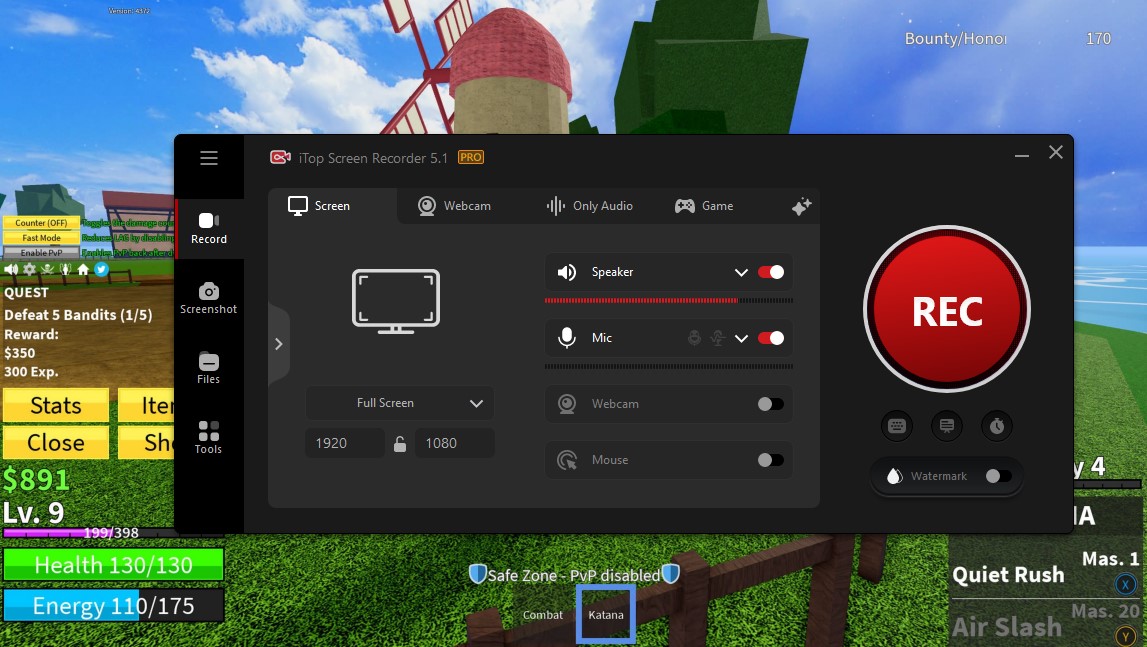
While built-in tools are great, sometimes you need more power and flexibility. This is where third-party game capture software shines for your Mac. These applications offer advanced features like higher resolution recording, customizable settings, and professional editing capabilities. If you're serious about creating high-quality Roblox content, investing a little time in one of these tools is highly recommended. They provide a significant upgrade in terms of control and output quality.
When considering third-party options, you're looking for stability, performance, and user-friendly interfaces. The right software can make a huge difference in your content creation workflow. Many of these tools are designed with gamers in mind, offering optimizations for game performance during recording. This means less lag and smoother footage, which is crucial for showing off your skills. Let's explore some popular and effective choices that Roblox Mac players frequently use.
OBS Studio: The Professional's Free Choice
OBS Studio is a powerhouse for screen recording and live streaming, and it's completely free and open-source. It’s a favorite among professional streamers and YouTubers for a reason. While it has a steeper learning curve than QuickTime, its flexibility and robust features are unmatched. If you want to customize every aspect of your recording, from audio inputs to video quality settings, OBS is your answer. It truly unlocks advanced possibilities for your Roblox content.
Why is OBS Studio so popular? It allows you to create multiple scenes, mix audio from various sources, and apply filters. You can set up specific scenes for your Roblox game, your webcam, and even custom overlays. This means you can create polished, professional-looking videos. The 'game capture software Mac' keyword really shines here, as OBS is purpose-built for this. It might take a bit to set up, but the results are incredibly rewarding. It's a commitment that pays off for high-quality content.
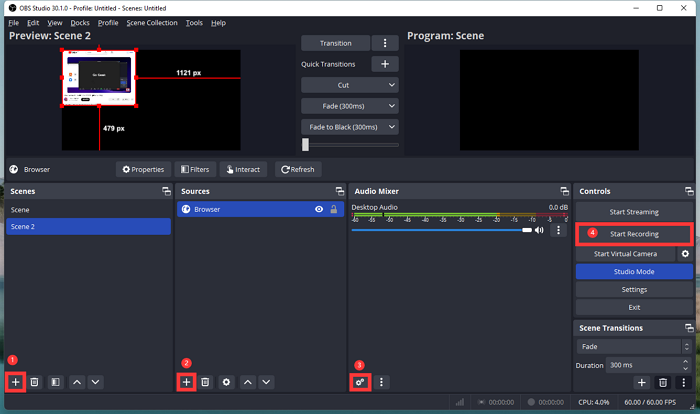
To get started with OBS Studio on your Mac, download and install it from the official website. Once open, you'll need to add a 'Source.' Click the '+' icon under 'Sources' and choose 'Window Capture' for your Roblox game or 'Display Capture' for your entire screen. Adjust your audio inputs under 'Audio Mixer' to include your microphone. In 'Settings,' optimize your 'Output' for recording, focusing on quality and file size. Hit 'Start Recording,' and you're good to go. Don't be afraid to experiment with settings to find what works best for your Mac and Roblox.
Other Noteworthy Mac Recorders for Roblox
Beyond OBS Studio, several other excellent game capture software options exist for Mac users looking to record Roblox. Each offers a slightly different set of features and user experiences. Knowing your options helps you choose the tool that best fits your recording style and budget. Some might be simpler, while others offer more robust editing suites. Exploring these alternatives can provide you with the perfect fit for your Roblox content creation journey.
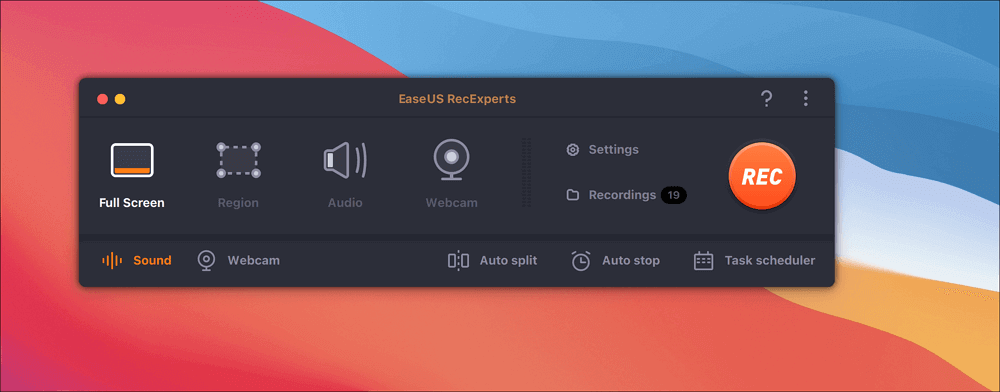
For instance, **ScreenFlow** is a powerful, paid option known for its integrated video editing capabilities. It’s fantastic for those who want an all-in-one recording and editing solution. If you're looking to create highly polished 'editing Roblox footage Mac' videos, ScreenFlow is a top contender. Another great choice is **Movavi Screen Recorder**, which offers a user-friendly interface and a good balance of features for both recording and basic editing. Both provide high-quality output and are generally easier to get into than OBS, albeit with a price tag. These tools streamline the process from capture to final product, saving you valuable time.
Optimizing Your Mac for Recording Roblox
Recording gameplay can be demanding on your Mac's resources. To ensure smooth, lag-free recordings and the best possible quality, it's crucial to optimize your system. Nobody wants choppy footage or a frozen game mid-recording! 'Optimizing Mac for recording' is a key step that many overlook. A few simple tweaks can make a huge difference in your recording experience and the final video output. We want your Roblox adventures to look as good on screen as they feel to play.
Before you hit that record button, close any unnecessary applications running in the background. Things like web browsers with multiple tabs, other games, or heavy creative software can hog CPU and RAM. A clean slate gives Roblox and your recording software more resources to work with. Also, ensure your Mac's operating system is up to date, as Apple often releases performance enhancements. Consider reducing Roblox's in-game graphics settings if you're experiencing lag. Lowering shadows or texture quality can free up valuable processing power for smoother recording. These small adjustments can dramatically improve your recording quality.
Storage and Performance Tips
When you're recording, especially long sessions, file sizes can get pretty big. Make sure you have ample free storage space on your Mac. Running low on disk space can lead to recording errors or choppy footage. Consider investing in an external SSD if you frequently record or create a lot of content. This dedicated drive can be used specifically for your 'Roblox screen recorder Mac' files, keeping your main drive lean. It also helps to offload older footage to cloud storage or an external drive to free up space regularly. Keeping your storage organized is a simple but effective strategy.
Another performance tip involves managing your Mac's power settings. If you're on a laptop, ensure it's plugged into power while recording. This prevents your Mac from throttling its performance to save battery life. Go into System Settings and check your 'Energy Saver' or 'Battery' preferences to ensure optimal performance. Some advanced users even tweak activity monitor settings, though for most, simply plugging in and closing background apps is sufficient. These steps ensure your Mac is operating at its peak potential, giving your recordings the best chance to be flawless.
Post-Recording: Editing and Sharing Your Roblox Videos
Capturing your Roblox gameplay is just the first step! To truly make your videos shine, you'll want to dive into editing. This is where you can trim out boring parts, add exciting music, include text overlays, and generally polish your footage into a compelling story. 'Editing Roblox footage Mac' can transform raw gameplay into engaging content. A well-edited video holds viewer attention much better than unedited clips. Plus, it’s a creative process that can be really fun!
There are many video editing software options available for Mac. For beginners, Apple’s own **iMovie** is free and incredibly user-friendly. It offers basic trimming, transitions, titles, and audio adjustments, perfect for getting started. If you're looking for more advanced features, **Final Cut Pro** (a paid Apple product) or **DaVinci Resolve** (a free, professional-grade option) are excellent choices. These tools offer multi-track editing, advanced color correction, and sophisticated audio controls. Learning to edit can seem daunting, but starting small and experimenting is key. Focus on making your best moments stand out.
Where to Share Your Roblox Masterpieces
Once your Roblox video is perfectly edited, it’s time to share it with the world! The right platform depends on your goals and audience. For longer, more detailed videos or series, **YouTube** is the undisputed king. It allows for high-quality uploads, monetization potential, and a vast gaming community. For shorter, more dynamic clips or highlights, **TikTok** and **Instagram Reels** are fantastic for quick engagement and reaching a younger audience. These platforms are perfect for showcasing quick wins or funny moments. 'Sharing Roblox videos' has never been easier with so many options at your fingertips.
Don't forget about sharing directly with friends! Platforms like **Discord** or even direct messaging apps allow you to send your videos privately. This is great for those inside jokes or exclusive group content. Consider the platform where your target audience hangs out and tailor your video length and style accordingly. Each platform has its own nuances, so a video that thrives on TikTok might need adjustments for YouTube. Getting your content out there is the final, rewarding step of your content creation journey.
Troubleshooting Common Recording Issues on Mac
Even with the best preparation, you might run into a snag or two when recording Roblox on your Mac. Don't worry, it happens to everyone! Encountering issues like choppy footage, no audio, or recording failures can be frustrating. However, most common problems have straightforward solutions. Understanding these fixes will save you a lot of headache and ensure your 'Roblox screen recorder Mac' experience remains smooth. A little troubleshooting knowledge goes a long way in keeping your content creation flowing.
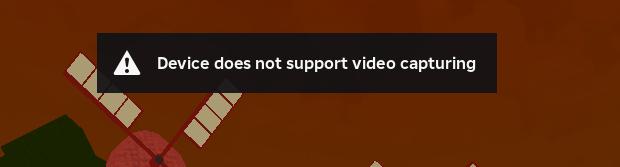
One frequent issue is **no audio recording**. First, check your recording software's settings to ensure the correct microphone or system audio is selected. Sometimes macOS security and privacy settings might prevent an application from accessing your microphone. Go to System Settings > Privacy & Security > Microphone, and make sure your recording app has permission. For **choppy or laggy footage**, revisit your optimization steps: close background apps, reduce Roblox graphics, and ensure ample disk space. If your Mac is old, upgrading RAM or using an external SSD can also help. Keep an eye on your CPU usage in Activity Monitor during recording to pinpoint bottlenecks. Most problems can be solved with a systematic approach.
Roblox Recording on Mac: Frequently Asked Questions
It's totally normal to have a bunch of questions when you're getting into something new like recording gameplay on your Mac. I get why this confuses so many people, especially with all the different software out there! This section is all about tackling those common queries head-on, giving you clear, friendly answers so you can get back to building and battling. You've got this, and we're here to help you nail those recordings!
How can I record Roblox on my Mac for free?
You can record Roblox on your Mac for free using built-in tools like QuickTime Player or the macOS Screenshot Toolbar. Open QuickTime Player, go to File > New Screen Recording, choose your capture area, and hit record. For the Screenshot Toolbar, press Shift+Command+5, select the record option, and start capturing. Both are excellent for basic, high-quality captures without spending a dime. Remember to check your audio input settings for commentary! Try this tomorrow and let me know how it goes.
What is the best software to record Roblox on Mac without lag?
The best software to record Roblox on Mac without lag often depends on your Mac's specs and optimization. For powerful Macs, OBS Studio offers extensive customization to minimize lag by adjusting settings like resolution and bitrate. For simpler needs, QuickTime is surprisingly efficient. Ensure you close background apps, lower Roblox graphics settings, and have sufficient RAM and storage to prevent lag. Sometimes it's less about the software and more about your setup! Give OBS a shot if you're feeling adventurous.
Can I record my voice and game audio simultaneously on Mac?
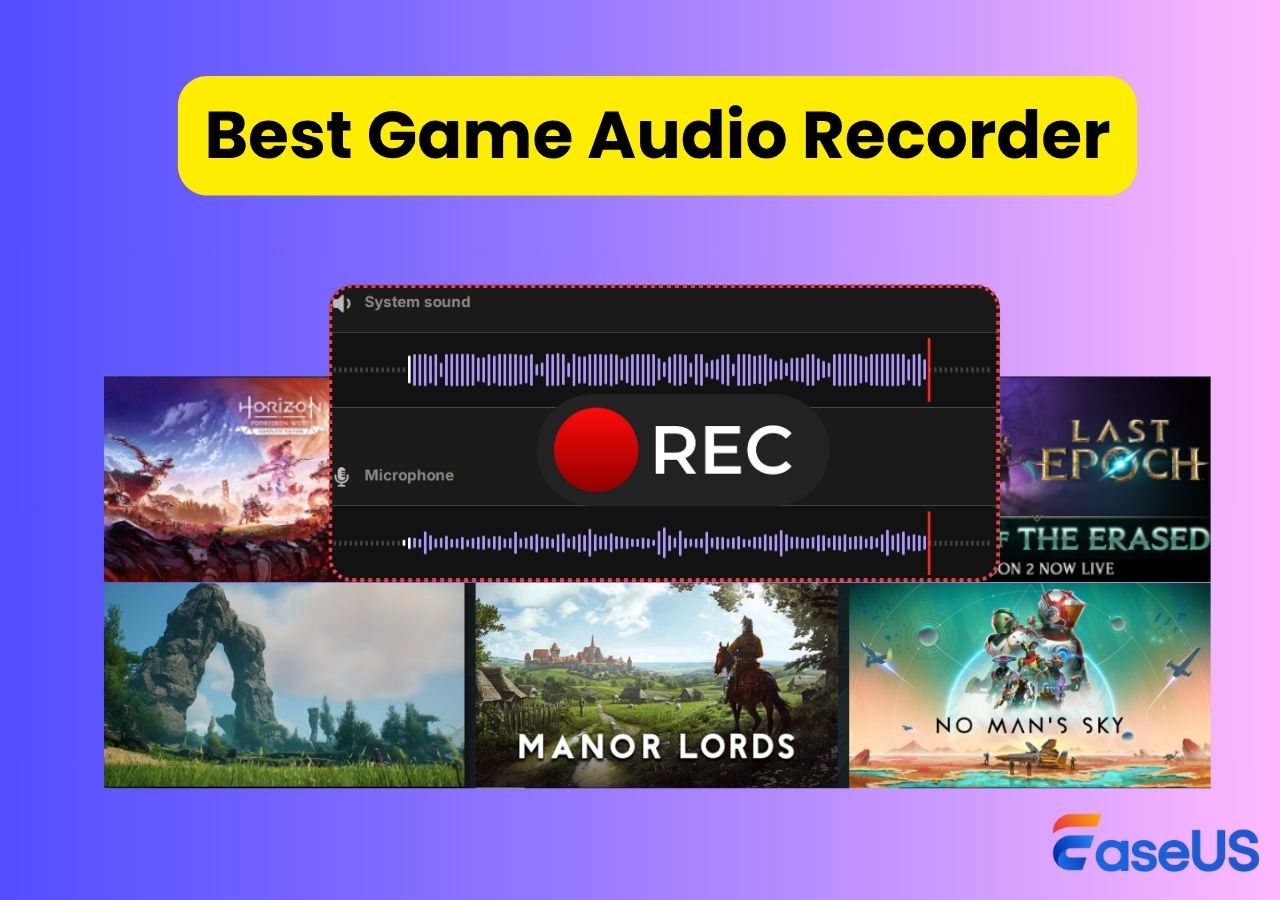
Yes, you can record your voice and game audio simultaneously on Mac. With QuickTime, select your microphone in the recording options. For game audio, you'll need a third-party app like BlackHole or Loopback to route system audio. OBS Studio handles both easily: add your microphone as an audio input and use 'Application Audio Capture' or 'Display Capture' with 'Capture Audio' enabled. It sounds complicated, but it's super doable with a little setup. You've got this!
Why is my Roblox recording choppy on Mac?
Choppy Roblox recordings on Mac are usually due to system resource limitations. This could be insufficient RAM, a slow processor, or too many background applications running. Try reducing Roblox's in-game graphics settings, closing all unnecessary apps, and ensuring your Mac is plugged in if it's a laptop. Make sure your storage drive isn't full, as that can also impact performance. These steps often resolve most lag issues. Don't let choppy footage get you down; it's usually fixable!
How do I edit my Roblox recordings on Mac?
You can easily edit your Roblox recordings on Mac using several tools. For beginners, Apple's iMovie (free) is excellent for basic trimming, adding music, and transitions. For more advanced editing, consider Final Cut Pro (paid) or DaVinci Resolve (free, professional-grade). These allow for multi-track editing, special effects, and detailed color correction. Start with iMovie, learn the basics, and then explore more complex software as your skills grow. Editing makes your epic moments even more epic!
Is OBS Studio good for recording Roblox on older Macs?
OBS Studio can work on older Macs, but performance may vary depending on the specific model and its specifications. It's generally more resource-intensive than QuickTime. To optimize OBS on an older Mac, reduce your recording resolution, lower the bitrate, and disable any unnecessary filters or overlays. Ensure your macOS is updated as much as possible for your hardware. You might need to experiment with settings, but it's often worth the effort for the features it offers. Don't give up on OBS too quickly!
How can I share my recorded Roblox videos effectively?
To share your recorded Roblox videos effectively, choose the right platform for your audience. YouTube is ideal for longer, high-quality gameplay and building a community. TikTok and Instagram Reels are perfect for short, engaging clips. For direct sharing with friends, use platforms like Discord or direct messaging apps. Always ensure your video quality is good and the content is engaging. Consider adding a catchy title and description to attract viewers. Sharing your awesome plays is the best part!
Quick Human-Friendly Cheat-Sheet for This Topic
- **Start Simple:** Just use QuickTime Player or Shift+Command+5 for quick recordings; they're already on your Mac!
- **Check Your Mic:** Always double-check your audio settings to make sure your voice is being captured.
- **Clear Your Desktop:** Close extra apps before recording to keep things running smoothly and prevent lag.
- **Power Up:** If you're on a laptop, plug it in! Your Mac performs best when it's not saving battery.
- **Edit for Impact:** Even basic trimming in iMovie makes your videos way more engaging for viewers.
- **Share Smart:** YouTube for longer videos, TikTok for quick hits, Discord for friends – pick your platform!
- **Don't Fear the Tech:** Most recording issues are simple fixes; a quick Google search or a check of settings often solves it.
Effortlessly record Roblox on your Mac using built-in tools like QuickTime. Utilize third-party game capture software for advanced features and higher quality. Optimize your Mac settings for smooth, lag-free recording. Learn essential tips for editing and sharing your Roblox gameplay videos. Troubleshoot common recording issues specific to macOS users.
35

How To Record Roblox On Mac With Sound 2026 Preview Roblox Recording . How To Record Roblox On Mac With Sound 2026 How To Record Roblox On Mac . How To Record Roblox On Mac With Sound 2026 Main Interface Recexperts Mac . How To Record Roblox On Mac With Sound 2026 Record On Roblox Via Mac Quicktime Player . Wie Man Roblox Auf Einem Mac Aufzeichnet Gaming 2026 How To Record Roblox On A Mac 7

How To Record Roblox On Your MacBook SUPER EASY YouTube . Top 3 Ways To Record Roblox Gameplay Video With Sound 2026 Record Menu . How To Screen Record Roblox On PC Mac And Phones . How To Record Roblox On Mac With Sound 2026 Record Roblox On Mac With Easeus Recexperts . How To Record Roblox On Mac With Sound 2026 Mac Change Output Format Video


Record Roblox On Mac Your Easy Guide How To Record Roblox On Mac . How To Record Roblox On Mac With Sound 2026 Quicktime Toolbar . How To Record On Roblox PC Mac IOS Android Chrome PCWorld How To Record On Roblox . Record Roblox On Mac Your Easy Guide How To Record Roblox With Obs . How To Record Roblox On A Mac Roblox On A Mac


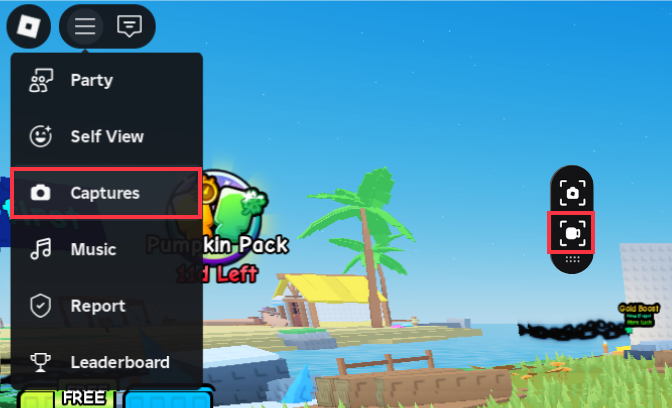
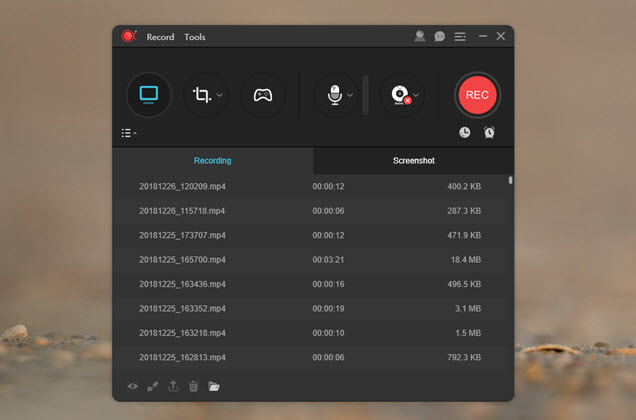
How To Record Roblox On Mac With Sound 2026 Record Roblox With Obs Studio . How To Record Roblox On A Mac Hqdefault . Top 3 Ways To Record Roblox Gameplay Video With Sound 2026 Record On Roblox . How To Record Roblox On Mac With Sound 2026 Roblox Captures . Guide How To Record Roblox On Windows Mac IPad And Others Record Roblox Apowerrec 1
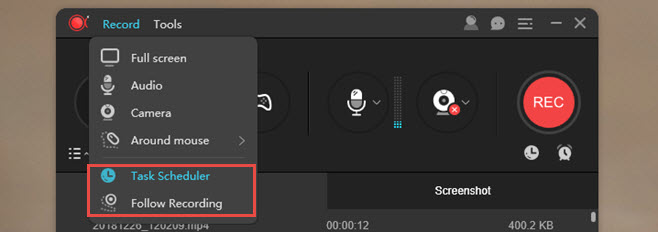
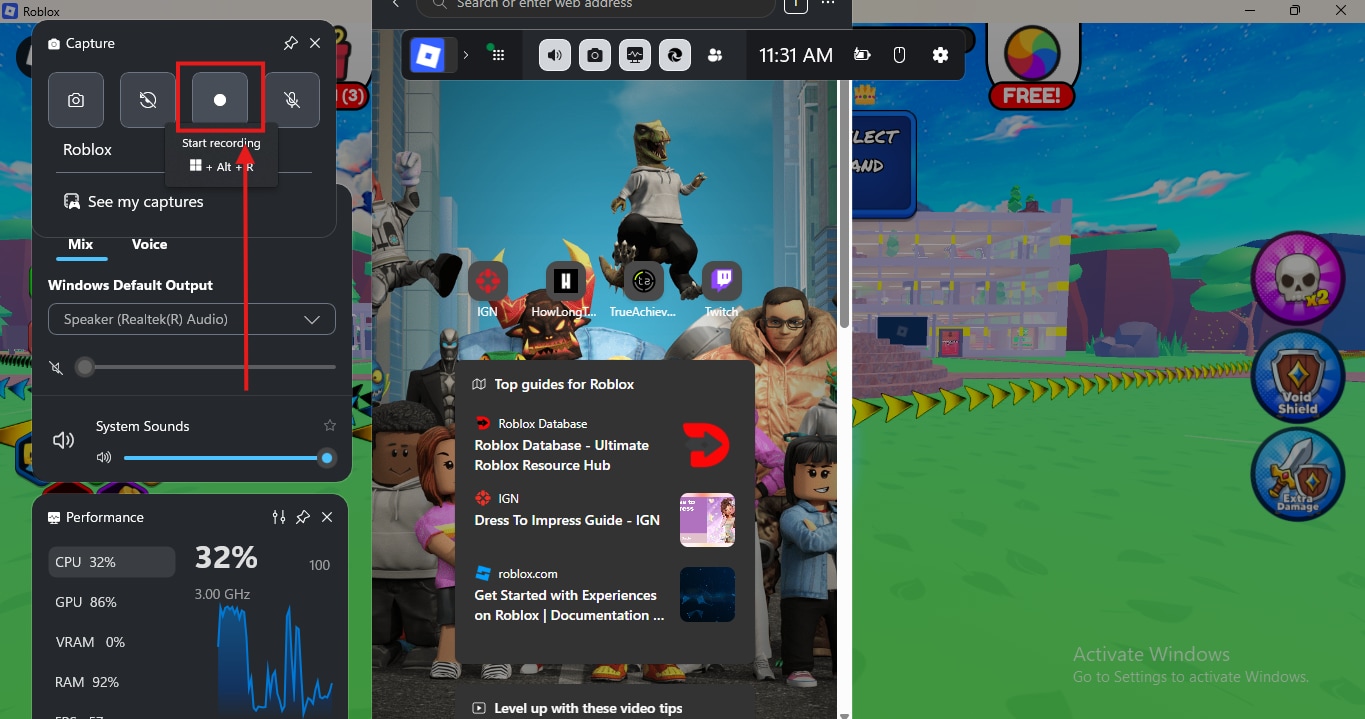

Guide How To Record Roblox On Windows Mac IPad And Others Record Roblox Apowerrec Modes . Easiest 5 Ways To How To Record Roblox On Any Device Built In Screen Recorder Over Roblox . How To Record Roblox On Mac With Sound 2026 Game Audio Recorder . How To Record Roblox On Mac With Sound 2026 Record Facetime Calls . Guide How To Record Roblox On Windows Mac IPad And Others Record Roblox Apowerrec

How To Record Roblox On Mac With Sound 2026 Device Not Support Recording . How To Record Roblox On Mac With Sound 2026 Button Macapp . Top 3 Ways To Record Roblox Gameplay Video With Sound 2026 Record On Roblox S . How To Record On Roblox Free . How To Record Roblox On Any Device 6 Easy Ways Quicktime Player New Screen Recording Add



Wie Man Roblox Auf Einem Mac Aufzeichnet Gaming 2026 How To Record Roblox On A Mac 6 . Record Roblox On Mac Your Easy Guide How To Record Roblox With Voice And Face . How To Record Roblox With OBS Full Guide YouTube . How To Record On Roblox PC Mac IOS Android Chrome PCWorld Roblox Xbox Capture . Guide How To Record Roblox On Windows Mac IPad And Others Record Roblox Iphone