Navigating in-app purchases can be tricky, especially in popular games like Roblox. For many US gamers, balancing work, family, and a passion for gaming means every dollar counts, and accidental purchases can be a real headache. This guide delves into the "apple refund method roblox," offering a clear, step-by-step approach to legitimately request refunds for unintended or unauthorized Robux and item purchases made through Apple's App Store. We understand the frustration of seeing hard-earned money spent mistakenly, and this resource aims to empower you with the knowledge to handle such situations effectively. We will cover eligibility, the refund process, potential pitfalls, and best practices to ensure your gaming experience remains fun and financially sound without compromising your Roblox account. Understanding Apple's refund policies is crucial for adult gamers who value smart spending and want to avoid unnecessary hassles while enjoying their digital escapes.
How do I get a refund for Roblox purchases on Apple?
To get a refund for Roblox purchases made on your Apple device, you need to visit Apple's official 'Report a Problem' website at reportaproblem.apple.com. Sign in with the Apple ID used for the purchase, locate the specific Roblox transaction, select 'Report a Problem' or 'Request a Refund', choose your reason (e.g., accidental purchase), and submit the form. Apple will then review your request and notify you of their decision.
What's Apple's refund policy for in-app purchases like Robux?
Apple's refund policy for in-app purchases generally allows users to request refunds within a reasonable timeframe, often up to 90 days from the purchase date. Refunds are typically granted for reasons such as accidental purchases, unauthorized transactions, or if the digital content was not received or functioned incorrectly. Decisions are made at Apple's discretion, and not all requests are guaranteed approval.
Can Roblox ban me for requesting an Apple refund for Robux?
Yes, Roblox can potentially take action against your account if you initiate a refund through Apple, especially if it's considered a 'chargeback' by Roblox's terms. While using Apple's official refund process is legitimate, frequent or unjustified chargebacks might lead to consequences like Robux deductions, temporary account restrictions, or even a permanent ban. It's best to use the refund method responsibly for genuine issues.
How long does an Apple refund for Robux usually take to process?
After you submit a refund request for Robux through Apple, the approval or denial decision usually comes within 24 to 48 hours via email. Once approved, the actual funds typically take 5 to 10 business days to appear back in your payment method, though some may see it sooner, depending on their bank or financial institution.
What information do I need to request a Roblox refund from Apple?
To request a Roblox refund from Apple, you primarily need the Apple ID used to make the purchase and access to the associated email. On the 'Report a Problem' website, you'll need to identify the specific Roblox purchase from your history. Having the exact date, amount, and a clear reason for the refund will help streamline the process.
Are all Roblox in-app purchases eligible for Apple refunds?
Not all Roblox in-app purchases are guaranteed an Apple refund. While many accidental or unauthorized transactions are eligible, Apple evaluates each request. Purchases made directly on the Roblox website or through other platforms (like Android or Xbox) are not eligible for refunds through Apple. Repeated refund requests or those for simply changing your mind are less likely to be approved.
How can I prevent accidental Roblox purchases on my Apple device?
To prevent accidental Roblox purchases on your Apple device, enable robust parental controls. Go to Settings > Screen Time > Content & Privacy Restrictions > iTunes & App Store Purchases. Here, you can set 'Require Password' to 'Always Require' for purchases, disable 'In-App Purchases' entirely, or use 'Ask to Buy' for Family Sharing to approve all transactions. Setting a Screen Time Passcode also adds an extra layer of protection.
Hey there, fellow gamers! Ever been deep into a game of Roblox, maybe letting a younger family member play on your device, only to discover an accidental Robux purchase or an in-game item you didn't mean to buy? You are definitely not alone. For many of us who balance a full work schedule, family responsibilities, and a love for gaming—sometimes spending 10+ hours a week unwinding in our favorite virtual worlds—unintended in-app purchases can be a real pain point, impacting our carefully managed budgets. With mobile gaming dominating screens and 87% of US gamers regularly diving in, accidental taps or curious kids are more common than ever.
The good news is, if these purchases were made through an Apple device, there's often a legitimate path to recourse: the
Apple refund method Roblox
. This isn't some secret exploit, but rather Apple's official system for addressing issues with App Store purchases. We're here to walk you through it, demystifying the process and helping you reclaim those funds without jeopardizing your precious Roblox account. Let's make sure your gaming experience remains about relaxation and fun, not financial stress.How Does the Apple Refund Method for Roblox Work?
The Apple refund method for Roblox primarily involves using Apple's 'Report a Problem' website. When you make an in-app purchase like Robux or game passes through an iPhone, iPad, or iPod Touch, the transaction is processed by Apple, not directly by Roblox. This means Apple is your first point of contact for any refund requests. They have specific guidelines and a review process for purchases made through their ecosystem.
Essentially, you'll log into your Apple ID on a dedicated website, find the problematic Roblox purchase, and submit a request explaining why you need a refund. Apple then evaluates your claim based on their terms of service, which usually allow for refunds in cases of accidental purchases, unauthorized transactions, or if the digital content wasn't delivered or didn't work as advertised. This system is designed to provide consumer protection within the App Store environment.
What Are the Eligibility Requirements for an Apple Refund for Roblox?
Apple's refund policy isn't a free-for-all, but it is quite accommodating for genuine issues. Generally, you need to have made the purchase through your Apple ID within a certain timeframe, typically within 90 days. Reasons like accidental purchases (especially by minors), items not received, or purchases made without your authorization are strong contenders for approval. If you simply changed your mind or found a better deal, your chances might be lower. It's crucial that the purchase originated from an Apple device and was processed through the App Store, as purchases made directly on Roblox's website or via other platforms like Android or Xbox fall under different refund policies.
How Do I Request a Refund for a Roblox Purchase Made Through Apple?
Requesting a refund for a Roblox purchase via Apple is straightforward:
- Go to
reportaproblem.apple.com
in a web browser. - Sign in with the Apple ID used to make the Roblox purchase.
- Once logged in, you'll see a list of your recent purchases. Scroll to find the specific Roblox purchase you want to refund.
- Click on the 'Report a Problem' button or 'Choose Problem' link next to the purchase.
- From the dropdown menu, select the reason that best describes your situation (e.g., 'I didn't authorize this purchase', 'My child made a purchase without my permission', or 'I meant to buy a different item').
- Provide a brief, clear explanation in the text box. Be honest and concise.
- Click 'Submit'.
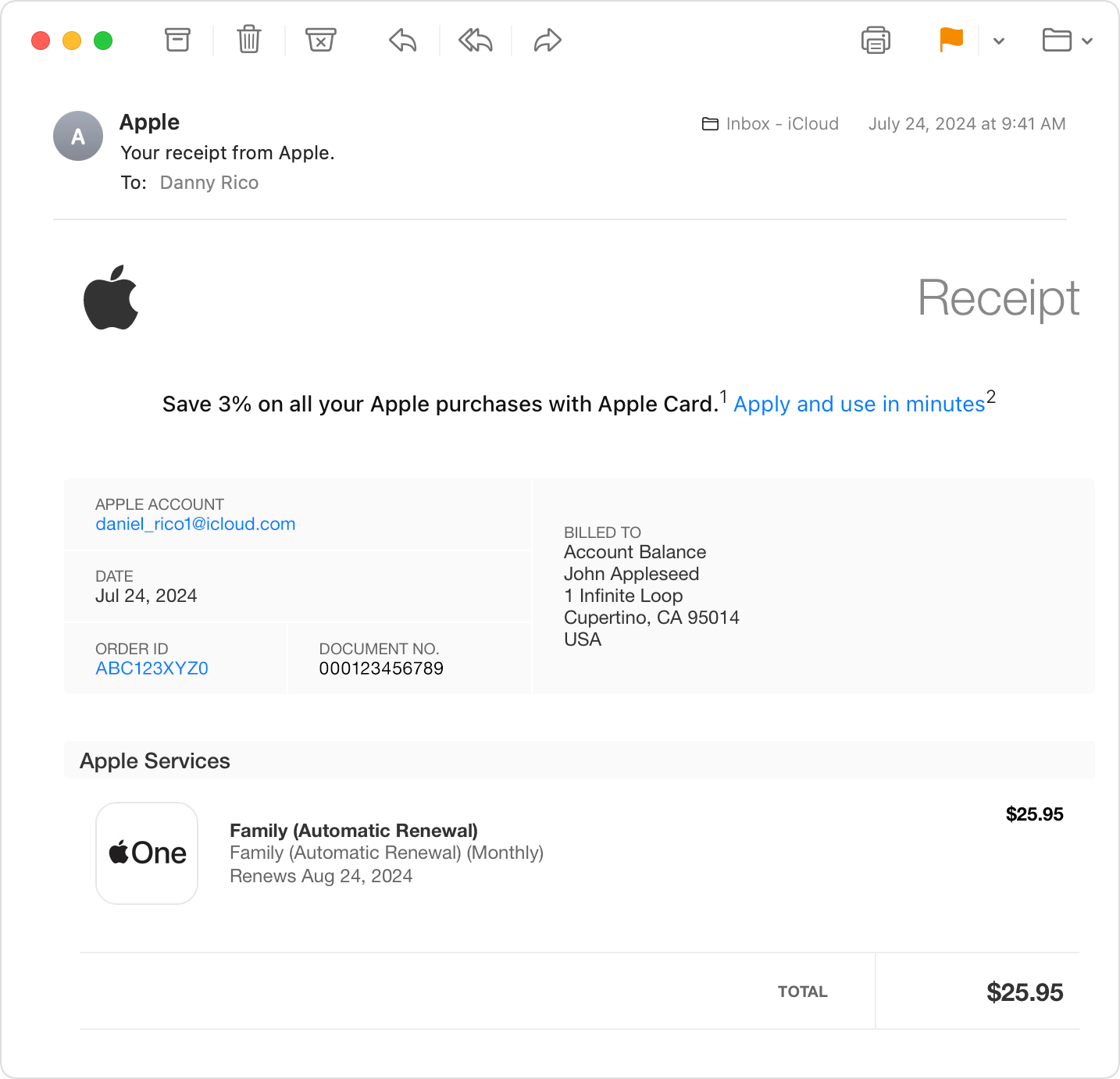
Apple will then review your request. You'll usually receive an email confirmation of your submission, and another email once a decision has been made. This process is standard for all App Store purchases, not just Roblox, and is designed for user convenience.
What Are the Common Reasons Apple Grants Refunds for Roblox Purchases?
Apple tends to be understanding in several common scenarios. Accidental purchases are high on the list, especially when a child is using the device; for adult gamers balancing responsibilities, a momentary lapse or shared device access can lead to unintended spending. Unauthorized purchases, where someone used your account without permission, are also frequently approved. Furthermore, if you bought Robux or an in-game item but never received it, or if it was faulty, Apple typically grants a refund. It's always best to be truthful and provide sufficient detail when submitting your reason to ensure a smooth review process.
Can Using the Apple Refund Method Impact My Roblox Account?
This is a major concern for many gamers, and it's a valid one. While using Apple's official refund process is legitimate, Roblox's stance on chargebacks can be strict. If Apple processes a refund, it technically becomes a 'chargeback' from Roblox's perspective because the funds are pulled back from them. Repeated or excessive chargebacks, particularly without valid cause, could potentially lead to Roblox taking action against your account, ranging from Robux deductions to temporary or permanent bans. This is not to deter you from seeking legitimate refunds, but rather to emphasize using the system responsibly and for genuine errors or unauthorized transactions. If it's a one-off, accidental purchase, the risk is usually minimal.
What Are the Steps to Prevent Accidental Roblox Purchases on Apple Devices?
Prevention is always better than cure! For adult gamers, especially those with kids who love Roblox, setting up safeguards on your Apple device is key. Here's how:
- Enable Ask to Buy: This Family Sharing feature sends a request to the organizer (you) for approval whenever a family member tries to make a purchase.
- Require Password for Purchases: Go to Settings > Screen Time > Content & Privacy Restrictions > iTunes & App Store Purchases. Set 'Require Password' to 'Always Require'.
- Disable In-App Purchases: In the same 'iTunes & App Store Purchases' section, you can turn off 'In-App Purchases' entirely.
- Use Screen Time Passcode: Set a Screen Time Passcode that your child doesn't know to prevent them from changing these restrictions.
These simple steps can save you a lot of hassle and ensure that your Robux budget stays exactly where you want it. Considering that a significant portion of US gamers are parents, these controls are invaluable for balancing screen time and sensible spending.
Are There Alternatives to Apple Refunds for Roblox Purchases?
For purchases made directly on the Roblox website or through other platforms (like Android Google Play or Xbox), you'd need to contact those platforms directly for their refund policies. Roblox itself has a limited refund policy, primarily for Robux that were never spent due to a technical issue or if an item was purchased but then removed from the catalog. However, for iOS-initiated transactions, Apple is almost always the first and most effective avenue for a refund. Trying to bypass Apple and going straight to Roblox for an iOS purchase usually results in being redirected back to Apple Support.
What Should I Do If My Apple Refund Request is Denied?
If your Apple refund request is denied, don't immediately despair, but understand that further recourse can be challenging. First, review the reason for the denial if provided. Sometimes, submitting a new request with more detailed information or a clearer explanation of the issue can help. If it was an accidental purchase, emphasize it as a one-time error. For unauthorized purchases, ensure you've clearly stated it wasn't you. If you believe there's been an error, you can try contacting Apple Support directly to explain your situation to a representative. Keep in mind that Apple's decision is often final, so exhausting their official channels is usually the extent of your options.
How Long Does an Apple Refund for Roblox Take?
Once you've submitted your refund request through
reportaproblem.apple.com
, Apple typically processes decisions within 24 to 48 hours. However, the actual time it takes for the refunded money to appear back in your account can vary. It usually depends on your bank or payment method, often ranging from 5 to 10 business days. Sometimes, it can be quicker, appearing in as little as 3 business days. You'll receive email updates from Apple regarding the status of your refund, so keep an eye on your inbox.What's the Difference Between Apple and Roblox's Refund Policies?
Understanding the distinction between Apple and Roblox's refund policies is crucial for gamers. Apple's policy covers all in-app purchases made through their App Store, offering a broader scope for refunds, particularly for accidental or unauthorized transactions within a reasonable timeframe (typically 90 days). Their focus is on consumer protection within their ecosystem. Roblox, on the other hand, has a much more restrictive refund policy. They generally do not refund Robux or items once purchased and delivered, unless there was a technical error on their part (e.g., Robux not crediting, or a purchased item immediately becoming unavailable). For iOS purchases, Apple is the gatekeeper, meaning their policy almost always supersedes Roblox's for those specific transactions.
Frequently Asked Questions About Apple Refunds for Roblox
Here are some quick answers to common questions about getting your money back for Roblox purchases on Apple devices.
Can I get a refund if my child bought Robux without my permission? Yes, this is one of the most common and legitimate reasons for an Apple refund. Use the 'Report a Problem' site and select 'My child made a purchase without my permission' as the reason.
Do Apple refunds affect my Roblox account balance immediately? Once Apple approves a refund, the Robux associated with that purchase will typically be removed from your Roblox account by Roblox. If you've already spent them, your account might go into a negative Robux balance. Roblox may then restrict your account until the balance is repaid or take further action if it's a recurring issue.
Is there a limit to how many Apple refunds I can request for Roblox? While there isn't a stated hard limit, Apple monitors refund requests. Repeated or excessive requests, especially if they appear to be abusing the system, can lead to your requests being denied or even your Apple ID being flagged for suspicious activity. Use the system judiciously for genuine issues.
What if I purchased Robux on a different platform, like Android or PC? The Apple refund method only applies to purchases made through Apple devices (iOS App Store). For Android, you'd contact Google Play support. For PC/web purchases, you'd refer to Roblox's direct support or the payment processor used.
Will Apple always approve my Roblox refund request? No, approval is not guaranteed. Apple reviews each request based on their terms and the details you provide. Being honest and providing a clear, valid reason significantly increases your chances, but denials can occur if the request doesn't meet their criteria or seems fraudulent.
Can I request a partial refund for a Roblox bundle? Generally, Apple processes refunds for the full amount of a specific transaction. If a bundle contains multiple items, you'd typically request a refund for the entire bundle purchase rather than individual components within it. Check your purchase history for how the items were grouped.
Conclusion
Navigating the world of in-app purchases, especially with the added layer of platforms like Roblox and Apple, can feel like another boss battle sometimes. But with this guide, you now have a clear roadmap for handling accidental or unauthorized Roblox purchases made through your Apple device. Remember, responsible gaming isn't just about playing fair; it's also about smart financial management and knowing your rights as a consumer. By understanding the
Apple refund method Roblox
, you can continue to enjoy your digital escapes without unnecessary stress.What's your biggest gaming challenge when it comes to in-game spending or unexpected purchases? Comment below and share your tips or questions!
Understanding the Apple refund method for Roblox, including eligibility, step-by-step process via reportaproblem.apple.com, potential impacts on Roblox accounts, and best practices for preventing accidental in-app purchases. Focus on legitimate uses and protecting your gaming experience.
34


UPDATED How To REFUND Items On Roblox 2026 Gamepasses UGC Robux . How To Get A Refund For Deleted Items On Roblox 2026 YouTube . Solved How To Refund Your Roblox Items All Available Methods How To Refund Items In Roblox.webp. How To Refund Items On Roblox YouTube . Roblox Refund Feature Is Here YouTube


Can You Return Roblox Items A 2026 Guide . How To Refund Items On Roblox Step By Step Guide YouTube . How To Refund Items On Roblox And Get Robux Back YouTube . Can You Refund Items On Roblox In 2026 What You Need To Know How To Refund Items On Roblox Easy Guide . How To Refund Items On Roblox PC Mobile F35be174 67e7 4f71 Ba97 Webp.webp



Can You Return Roblox Items A 2026 Guide . How To Refund Items On Roblox 2026 NEW UPDATE Get Your Robux Back . Can You Refund Items On Roblox In 2026 What You Need To Know How To Refund Items On. Roblox Gamepass Refunds What You Need To Know . Roblox How To Get A Robux Refund YouTube


How To Refund Robux On Apple Devices A Simple Guide Playbite How To Refund Robux On Apple 1 . How To Refund Items In Roblox Full Guide YouTube . Family Member Spent 100 On Roblox On Apple The Robux Has Not Yet Been Family Member Spent 100 On Roblox On Apple The Robux Has V0 . Roblox Apple Refund Robux Meme YouTube . Roblox Gamepass Refunds What You Need To Know



Roblox Gamepass Refunds What You Need To Know 1666770097 . Roblox Gamepass Refunds What You Need To Know . Roblox Gamepass Refunds What You Need To Know . Roblox Gamepass Refunds What You Need To Know . External Roblox Compware Refund Hellamoney TikTok Img
Apple Return Policy 2026 14 Day Rules Refunds Holidays Apple Return Policy . Refund Apple Community 61b70b09 2cde 4205 B971. Did Not Receive Refund From Apple Yet Apple Community 0cd714f6 7a98 4569 B621. Request A Refund For Apps Or Content That You Bought From Apple Apple Your Receipt From Apple Email Bill Apple Account . Refund Issue Apple Community 0c716293 8982 445e 82ee


Request A Refund For Apps Or Content That You Bought From Apple Apple Ios 18 Iphone 15 Pro Safari Apple Com Request A Refund . How To Refund Items On Roblox YouTube . Can You Get A Refund On Roblox YouTube . Refund Apple Community C83f54b9 B829 4362 8a5f