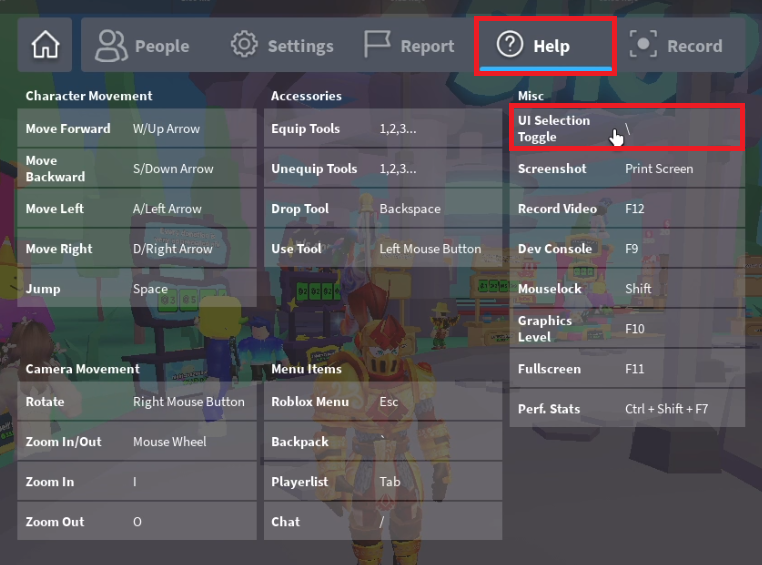
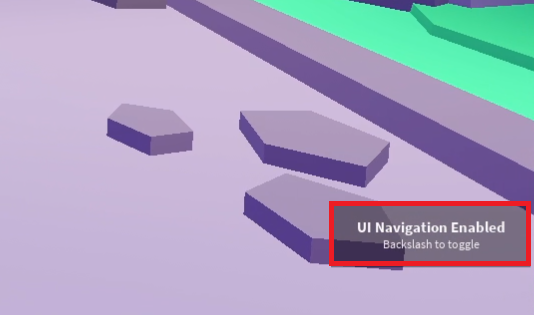
For Roblox creators and experienced players, understanding how to disable default UI navigation is crucial for creating truly immersive and customized game experiences. Imagine designing a unique interactive world only to have standard Roblox menus interfering with your vision. This guide dives deep into the methods for gaining full control over your game's user interface, enhancing player immersion, and optimizing performance by removing unnecessary UI elements. Whether you are aiming for a minimalist aesthetic, building a complex custom control scheme, or simply want to clean up the screen, learning to manage UI visibility and interaction is a powerful skill. We will explore scripting techniques, common pitfalls, and best practices to ensure your players enjoy a seamless and distraction-free journey through your creations. Many US gamers, accounting for approximately 87 percent of the gaming population and dedicating an average of 10 plus hours per week to their passion, seek optimized experiences, making UI control a highly relevant topic this month. Mastering UI navigation control ensures your game stands out amidst the bustling Roblox ecosystem.
How do I entirely remove Roblox default UI like chat and leaderboard?
To entirely remove common default Roblox UI elements such as the chat window, player list (leaderboard), and the top bar, developers should utilize the `StarterGui:SetCoreGuiEnabled()` function within a LocalScript. This is the most robust and recommended method as it directly controls the visibility and functionality of these core components. For instance, to disable chat, you would use `game:GetService("StarterGui"):SetCoreGuiEnabled(Enum.CoreGuiType.Chat, false)`. Repeat this for other `CoreGuiType` enums like `PlayerList` and `Health`. Place this script in `StarterPlayerScripts` to ensure it runs for every player joining your game.
What is UserInputService and how does it relate to UI navigation control?
UserInputService is a crucial Roblox service for handling player input across various devices, including keyboard, mouse, gamepad, and touch. It becomes relevant to UI navigation control when you want to prevent default Roblox behaviors triggered by input, or when you are implementing entirely custom navigation. By connecting to events like `InputBegan` and `InputEnded`, you can detect when a player presses a key or clicks, then use `gameProcessedEvent` to determine if Roblox has already handled that input for its default UI. If it has, you can sometimes override or prevent that processing for a custom effect, or simply ignore inputs that would typically open default menus, effectively disabling aspects of UI navigation.
Can disabling default UI navigation improve game performance?
Yes, disabling default UI navigation can contribute to improved game performance, particularly on lower-end devices or for experiences with many active players. Each visible UI element, especially those with animations or frequent updates (like the chat or player list), consumes rendering resources and memory. By setting these elements to invisible or explicitly disabling them, you reduce the client's workload. This translates to fewer drawing calls and less CPU usage, resulting in higher frame rates and a smoother gameplay experience. This optimization is especially beneficial in a gaming landscape where mobile access is prevalent and players value efficient experiences.
Are there any downsides or risks to disabling Roblox's default UI?
While disabling Roblox's default UI offers significant benefits for customization and immersion, there are potential downsides and risks to consider. The most immediate is the loss of essential player functionality; if you remove the chat or player list without providing custom alternatives, players might struggle to communicate or see who else is in the game. Furthermore, some default UI elements are crucial for accessibility or platform compliance. Improperly disabling core UI can lead to a confusing user experience, unexpected bugs, or even violate Roblox's terms if critical safety features are removed. Always ensure you provide suitable custom replacements for any essential functionality you remove.
How can I create a truly custom UI experience after disabling defaults?
After disabling Roblox's default UI, you gain a blank canvas to create a truly custom user experience using `ScreenGui` objects, `Frame` elements, `TextLabel`s, `ImageLabel`s, and interactive buttons. Start by adding a `ScreenGui` to `StarterGui`. Populate it with your custom chat, inventory, health bar, and menu systems using a combination of `LocalScripts` to handle their logic and visual updates. Focus on intuitive design, consistent aesthetics, and responsiveness to different screen sizes and input types (especially for mobile players). Remember to use `UILayout` objects like `UIListLayout` and `UIGridLayout` for organized and adaptable UI elements, ensuring your custom interface is both functional and visually appealing.
What if I only want to hide the UI temporarily, like for a cutscene?
If your goal is to temporarily hide the UI, for instance during a cutscene or a specific gameplay moment, you can manage the `Visible` property of your own custom `ScreenGui` objects or use `StarterGui:SetCoreGuiEnabled()` for specific CoreGui elements, then re-enable them later. For your custom UIs, simply setting `ScreenGui.Enabled = false` (or `ScreenGui.Visible = false` for individual frames) will hide them. To temporarily hide all CoreGui elements, you can create a loop through `Enum.CoreGuiType` values and set them all to `false`, then another loop to set them back to `true` when the cutscene ends. This allows for seamless transitions without permanently altering the player's UI experience.
What tools within Roblox Studio help manage and preview custom UI?
Roblox Studio provides several powerful tools to help manage and preview your custom UI effectively. The `Explorer` window lets you organize your `ScreenGui` hierarchy. The `Properties` window allows precise control over every UI element's size, position, color, and other attributes. The `Emulator` feature (under the Test tab) is invaluable for previewing your UI on various devices and screen sizes, from mobile phones to tablets and PCs, ensuring responsiveness. Additionally, the `Output` window helps debug scripts associated with your UI, while the `UI Editor` (accessible when a UI element is selected) offers a visual, drag-and-drop interface for positioning and sizing, making UI design much more intuitive and efficient for creators.
Ever felt like the default Roblox user interface, with its chat windows, player lists, and menus, just gets in the way of the amazing world you are trying to create or experience? For many US gamers, balancing work, family, and a passion for gaming means every moment counts. When you dive into a game for relaxation or skill-building, an intrusive UI can break that immersion. Roblox, being a platform where creativity knows no bounds, sometimes needs a little tweaking under the hood to truly shine. Disabling default UI navigation is a common quest for developers and players alike who seek a cleaner, more focused, and ultimately, more immersive experience. With an estimated 87 percent of US gamers regularly dedicating over 10 hours a week to their favorite titles, performance and seamless interaction are paramount. This guide is your friendly, practical roadmap to reclaiming control over your Roblox UI, ensuring your game delivers exactly the experience you intend, free from default distractions.
You want your players to engage with your unique custom interfaces, not struggle with the platform's standard fare. This is especially true in a world where mobile gaming dominates, and streamlined interfaces are key to a good user experience. Whether you are optimizing a game for competitive play, designing a narrative-driven adventure, or simply aiming for a minimalist aesthetic, knowing how to disable UI navigation in Roblox is an invaluable skill. We will walk through the how-to, the why, and the important considerations, helping you craft an environment where your creative vision takes center stage.
Why Would I Want to Disable Default UI Navigation in Roblox?
Many developers and players opt to disable Roblox's default UI navigation for several compelling reasons. The primary motivation is often to achieve greater immersion within a game. Default elements like the chat box, leaderboard, or top bar can break the fourth wall, reminding players they are in a generic Roblox experience rather than a custom-built world. For games with unique visual styles or narrative focus, a clean screen allows the art and story to speak for themselves. This month, with social and cozy games trending, a seamless, aesthetically pleasing UI becomes even more critical for engaging players.
Another key reason is to implement custom user interfaces. If you are building a game with a unique inventory system, interactive menus, or custom health bars, the default UI can conflict visually or functionally. By disabling it, you gain full control over what players see and interact with, allowing for a truly tailored and consistent user experience. This also ties into performance optimization; removing unnecessary UI elements can reduce client-side rendering load, leading to smoother gameplay, especially for players on older devices or those primarily gaming on mobile, which continues to be a dominant platform among US gamers.
What Are the Common Methods to Disable Roblox UI Elements?
Disabling Roblox UI elements primarily involves scripting within Roblox Studio. There are a few core approaches you can take, depending on whether you want to hide specific built-in elements or completely override the entire default navigation system. The most common methods include manipulating the CoreGui, utilizing the UserInputService to capture and redirect input, and directly managing specific GUI objects. Understanding these methods is key to achieving your desired level of UI control.
For instance, accessing elements within the CoreGui is a powerful technique. The CoreGui is where many of Roblox's essential UI components reside. While direct modification can be tricky and sometimes restricted, developers can often hide or disable its visibility through specific API calls. Another method involves iterating through existing GUI elements in the PlayerGui and setting their Visible property to false. Each approach has its nuances and suitability depending on the specific UI component you wish to affect and the scope of your desired changes.
How Do I Disable Specific CoreGui Elements in Roblox?
Disabling specific CoreGui elements requires careful scripting, as directly removing them is often not supported or can break core game functionality. Instead, the strategy usually involves making them invisible or intercepting their input. You will typically use a LocalScript placed in `StarterPlayerScripts` or `StarterGui` to execute this logic for each player.
Here is a general approach using Lua scripting:
Identify the CoreGui element: While you cannot directly see CoreGui contents in Studio's explorer during development, certain well-known elements have names. For example, the default chat, player list, and top bar. These are often children of `PlayerGui` or accessible via `StarterGui` properties.
Use `SetCoreGuiEnabled`: This function, found in `StarterGui`, is specifically designed to enable or disable various CoreGui types. It is the safest and most recommended method for major UI components. For example, to disable the chat:
game:GetService(Disable Roblox UI navigation for enhanced immersion. Learn scripting methods for CoreGui elements. Understand UserInputService to override default controls. Create custom UI without interference. Address potential issues and re-enable UI. Optimize game performance by removing unnecessary UI. Essential for advanced Roblox game development and custom experiences.
35#1 Gallery how to disable ui navigation in roblox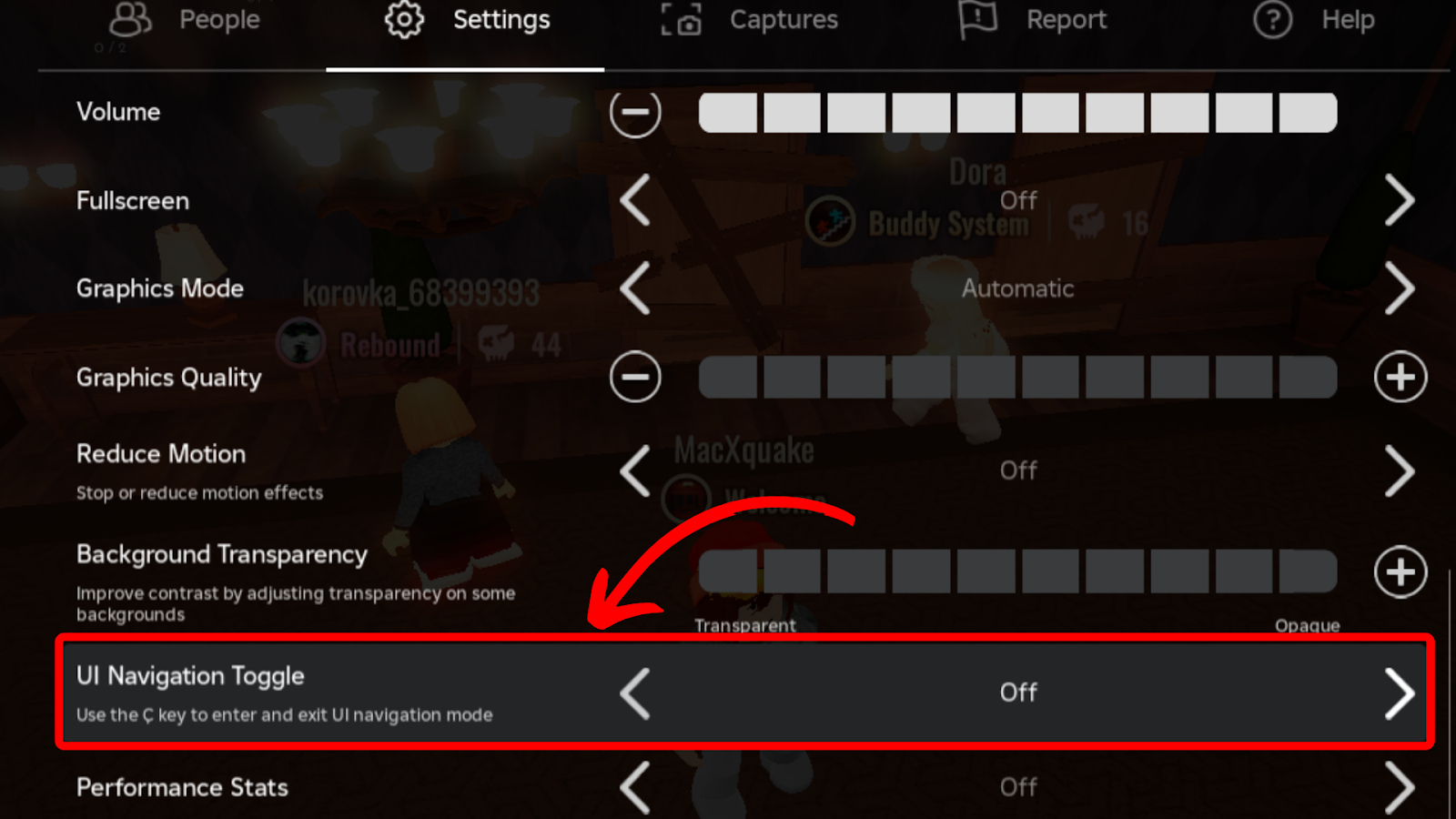

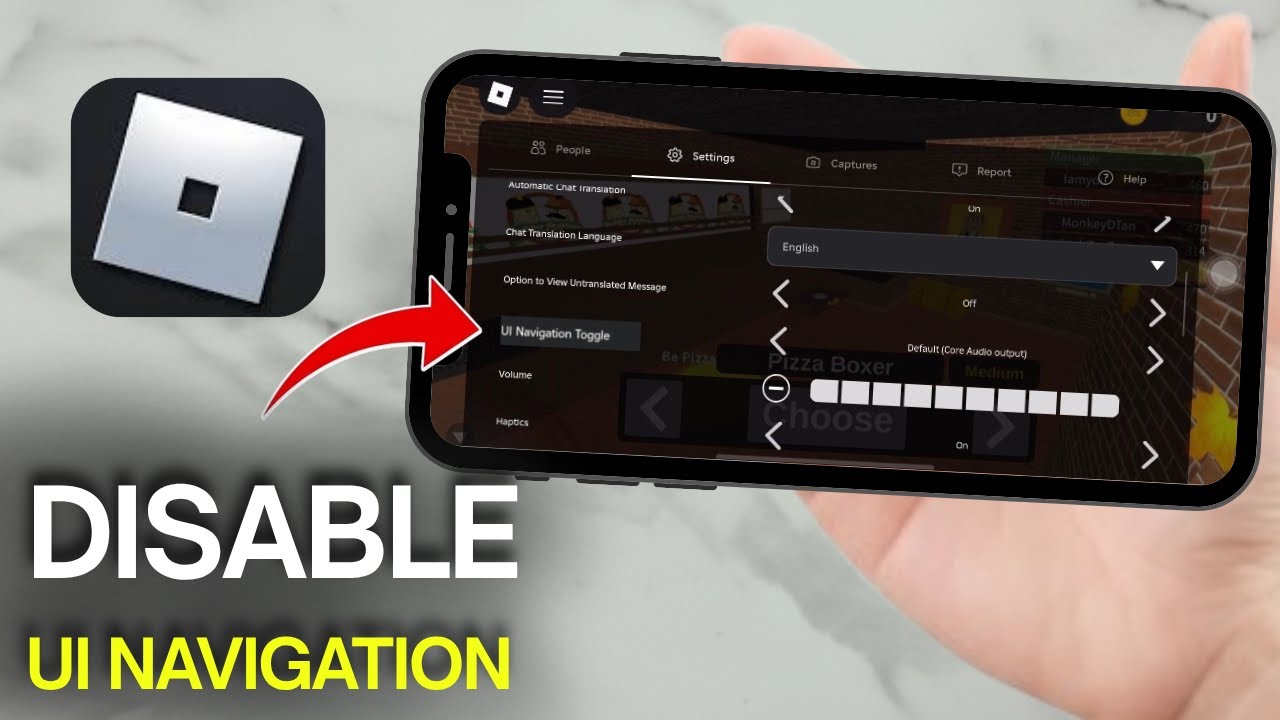
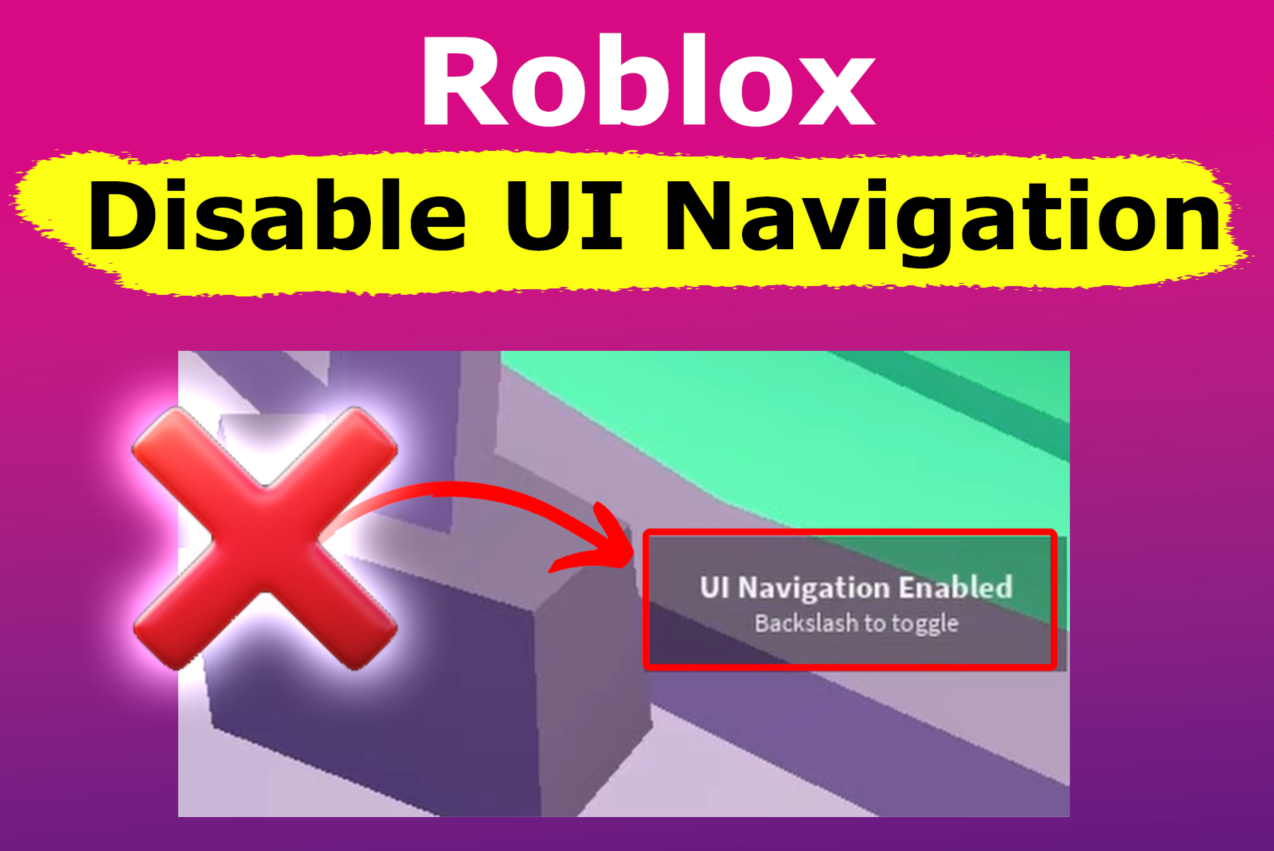
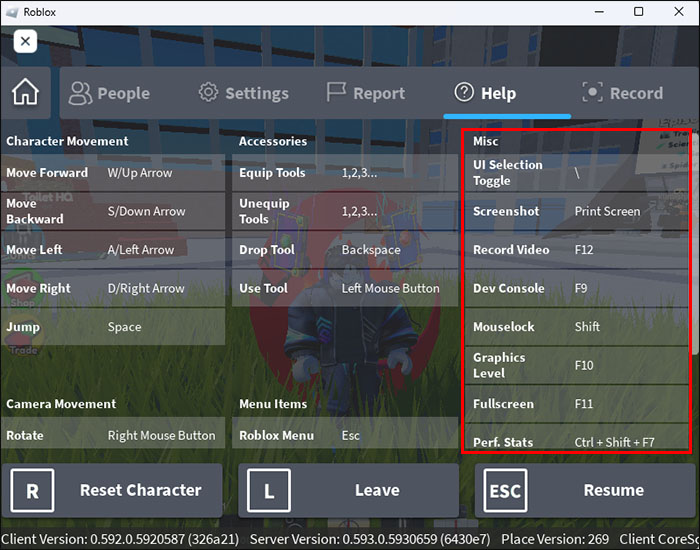
Want To Disable Roblox Captures Here S How Disable Ui Navigation Robloxbralt Disable UI Navigation Roblox . How To Stop All Animations Roblox At Reynaldo Leahy Blog . How To Disable Roblox UI Navigation Simple Guide YouTube . Stop The UI Turning Off Navigation In Roblox Image . How To Enable UI Navigation Roblox Your Essential Guide Roblox How To Disable UI Navigation 2
#2 Gallery how to disable ui navigation in roblox

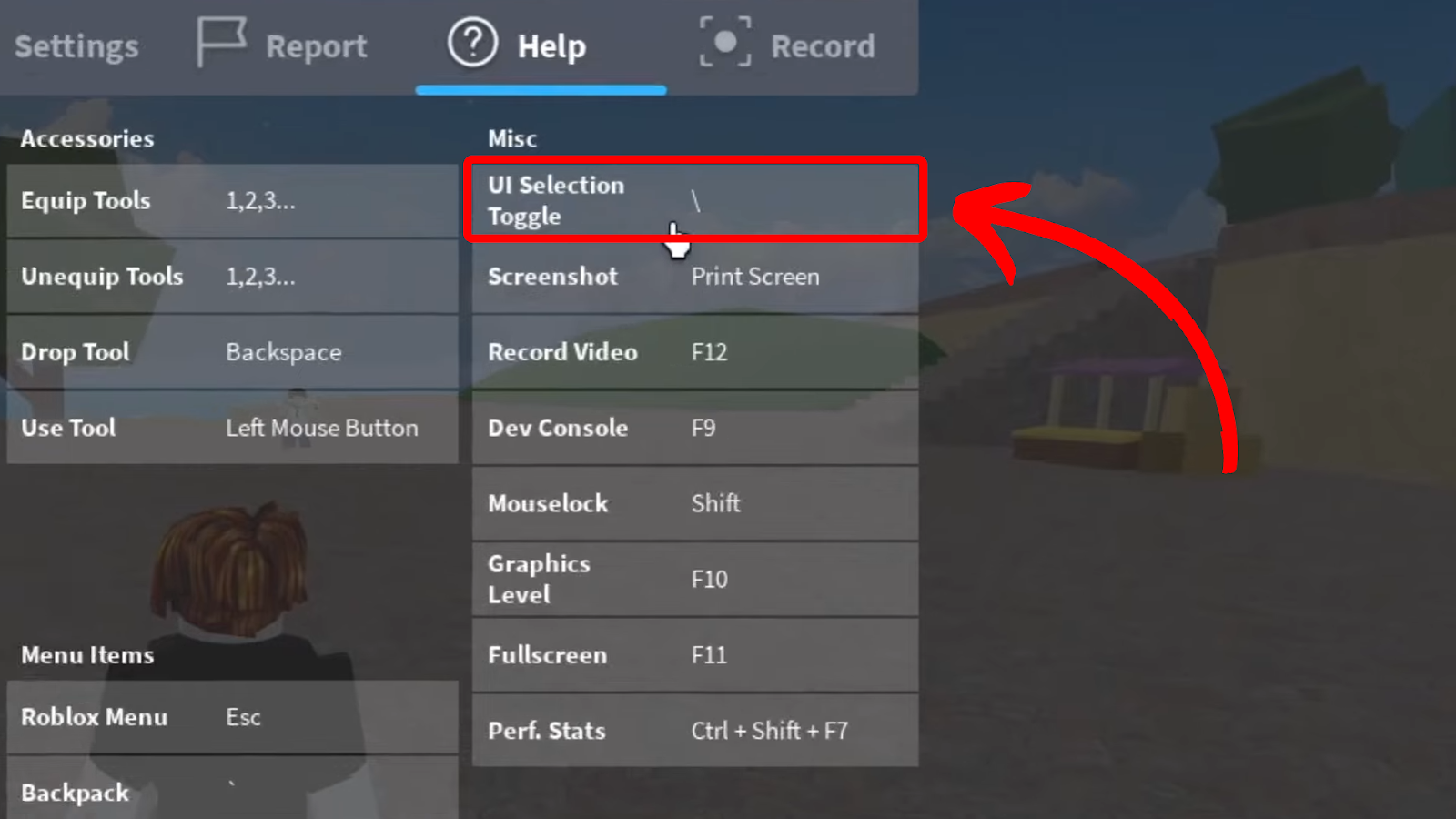

How To Disable Roblox UI Navigation Full Guide YouTube . How To Enable UI Navigation Roblox Your Essential Guide 1 Roblox Settings. How To Turn Off UI Navigation In Roblox A Step By Step Guide YouTube . Stop The UI Turning Off Navigation In Roblox Ui Navigation Selection Toggle Settings . How To Turn Off Roblox UI Navigation How To Disable Roblox UI
#3 Gallery how to disable ui navigation in roblox



How To Disable UI Navigation In Roblox Easy Fix YouTube . How To Disable Roblox UI Navigation Quick Easy YouTube . How To Disable UI Navigation In Roblox Games Adda How To Disable UI Navigation In ROblox . How To Disable Roblox UI Navigation Quick And Easy Tutorial YouTube . Turn Off UI Navigation In Roblox PC Permanent And Quick Fixes Screenshot 2025 09 17 115343
#4 Gallery how to disable ui navigation in roblox

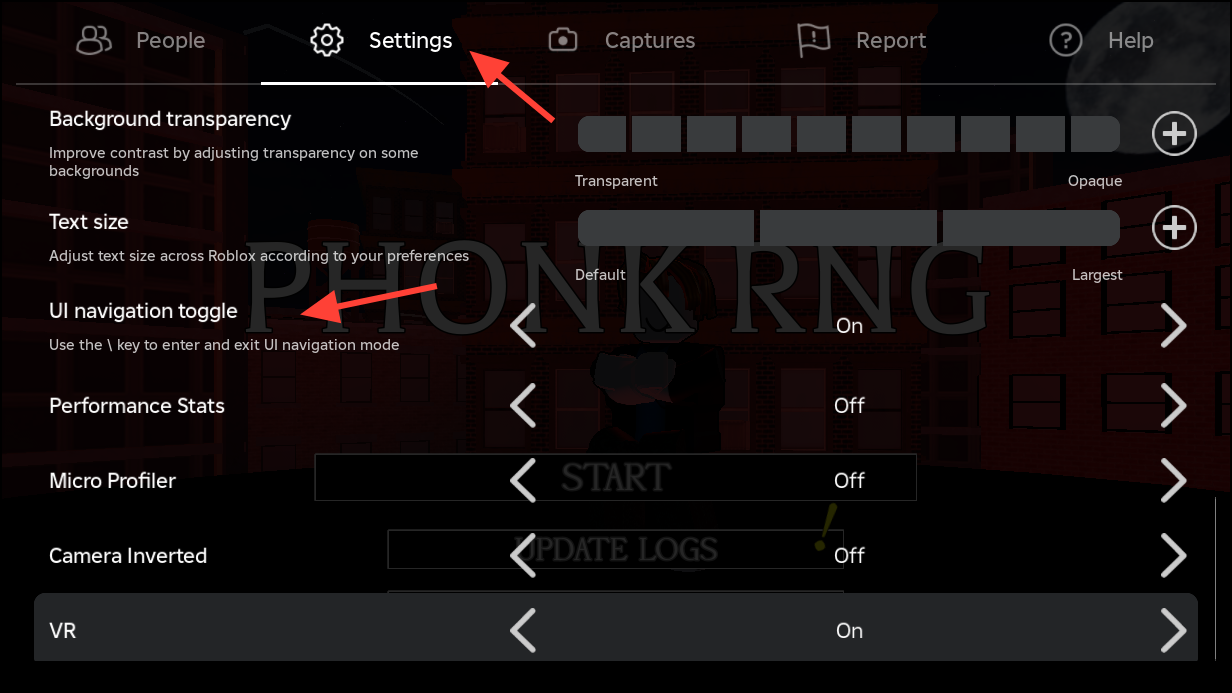
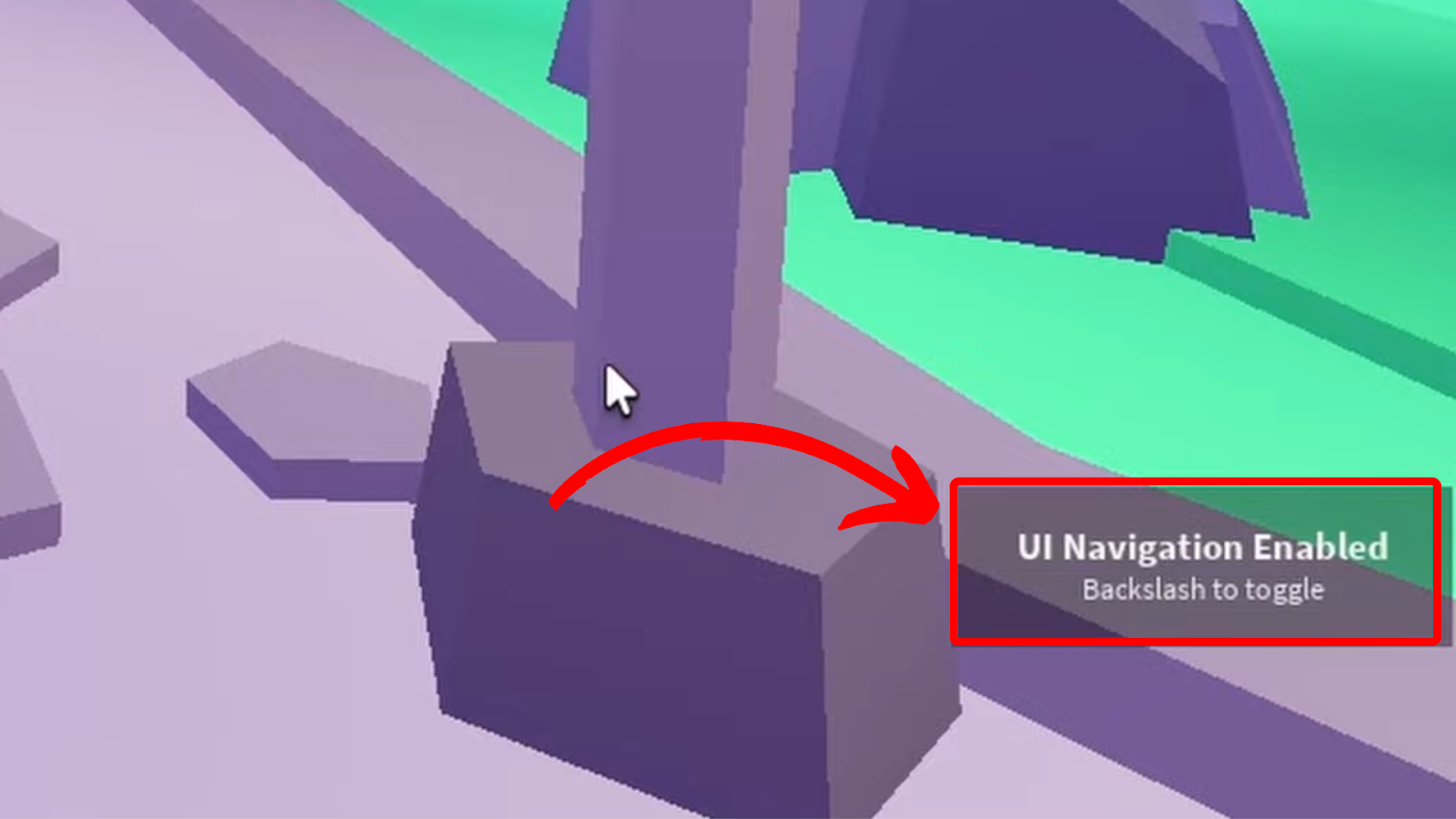
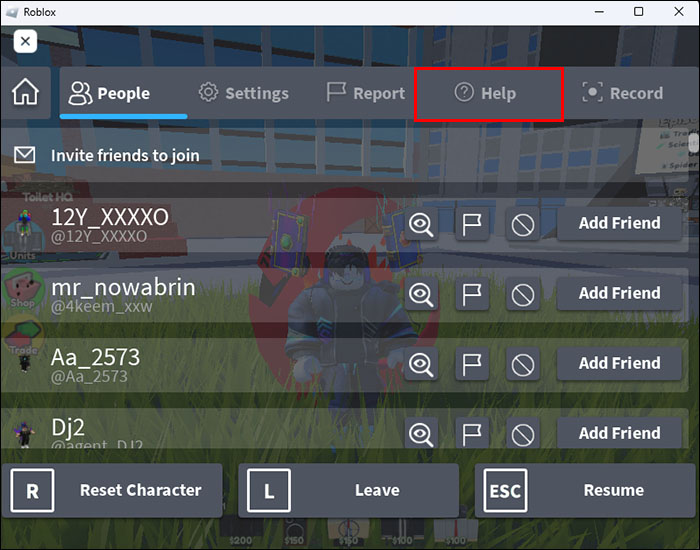
How To Disable Roblox UI Navigation Quick Easy YouTube . How To Disable UI Navigation In Roblox Roblox How To Disable UI Navigation . Turn Off UI Navigation In Roblox PC Permanent And Quick Fixes Image 1576 1 . Stop The UI Turning Off Navigation In Roblox How Turn Off Ui Navigation Roblox . How To Enable UI Navigation Roblox Your Essential Guide Roblox How To Disable UI Navigation 1
#5 Gallery how to disable ui navigation in roblox


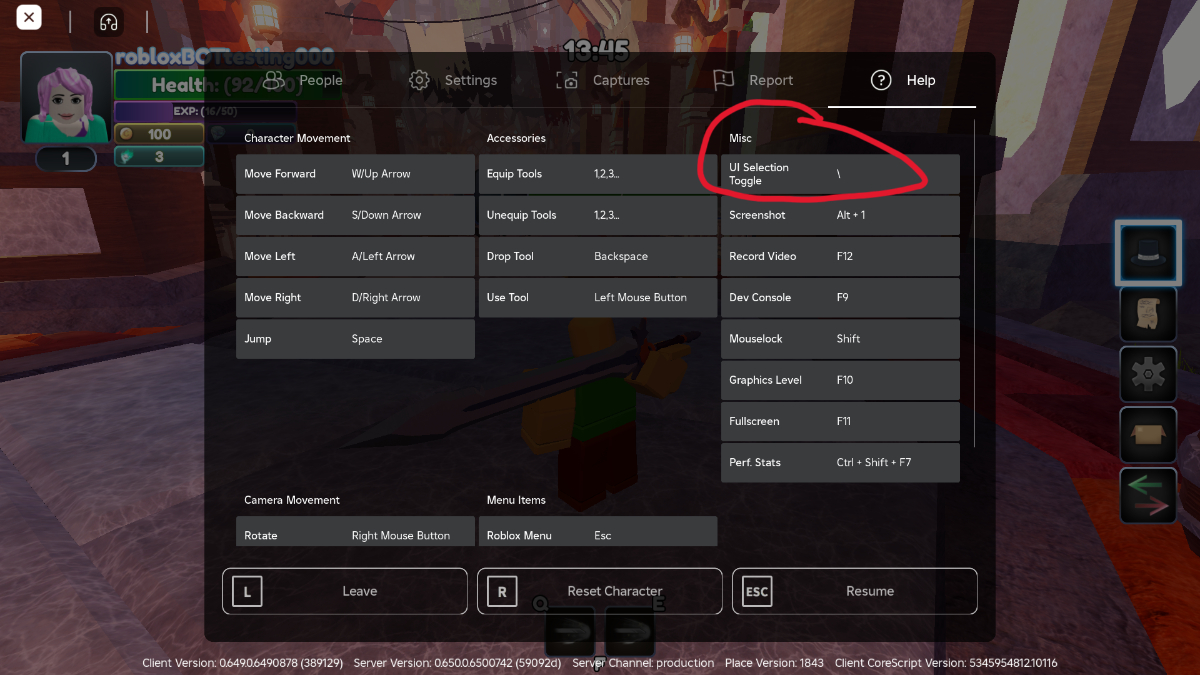

How To Disable UI Navigation In Roblox Can T Move Fix Keyboard . How To Disable UI Navigation In Roblox Fix Can T Move Glitch Roblox . How To Enable UI Navigation Roblox Your Essential Guide . How To Toggle UI Navigation And Get Moving Again On Roblox The Nerd Stash Roblox UI Navigation Menu . Stop The UI Turning Off Navigation In Roblox
#6 Gallery how to disable ui navigation in roblox


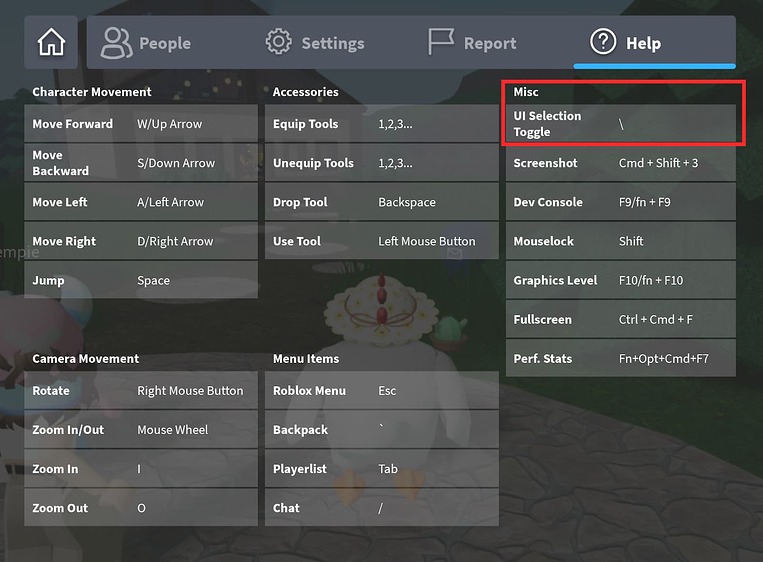
How To Disable Roblox UI Navigation Quick Fix YouTube . How To Enable UI Navigation Roblox Your Essential Guide 2 UI Navigation Toggle. How To Enable UI Navigation Roblox Your Essential Guide . How To Disable UI Navigation In Roblox Unable To Move Fix YouTube . How To Enable UI Navigation Roblox Your Essential Guide 2 763x562
#7 Gallery how to disable ui navigation in roblox


Stop The UI Turning Off Navigation In Roblox . How To Disable Roblox UI Navigation Stop Getting Stuck YouTube . How To Disable UI Navigation In Roblox YouTube . How To Turn Off UI Navigation Roblox YouTube . DISABLE ROBLOX UI NAVIGATION NEW FIX How To Disable Roblox UI